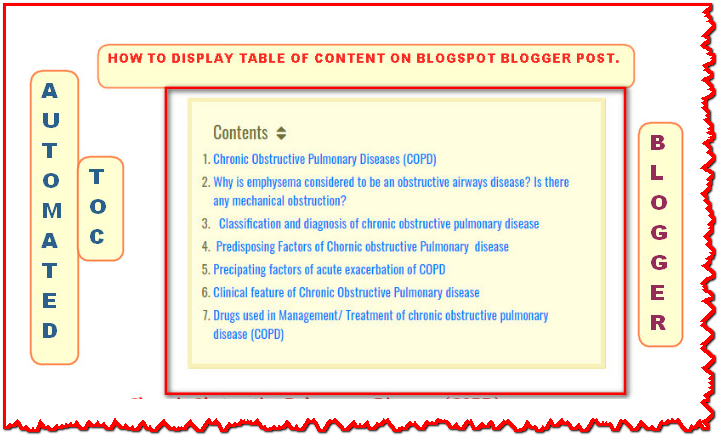
Add fancy automated Table of Content (TOC) in Blog post

Dear Learnmore trick viewers today i am going to teach you how to add fancy automated table of content in blog post in a easy manner.You can add your table of content on your each post for this you should code on your blogger templeate .Table of content is important for those people who are writing their articles professionaly with heading and sub heading.Today i am going to teach you how to add table of content for Headings ,and Sub headings titles.
What is table of Content (TOC) ?
Table of content (TOC) is a list of your articles titles which gives a idea about which topics are introduced by author in an article. Table of content carries a breif descriptions of titles/chapters that means when viewer want read specific contents from your article/post at that time it will be very effective ,because it jumps on that topic with out scrooling your page. It is generraly put on the top of the articles but there is no restrications, You can use where ever you want.
Why we need table of Content ?
- High chance of Rank your Post: Table of content is that plugins which is very helpful for blogger which will get higher rank in Google search engine for your entire post.
- Quick Look: It is also helpful for your Blog readers to findout specific topic quickly that they want to read with out scrooling entire post.
- Highligh Spectific topic: Table of content Highligh the entire post in listed form.
- Gives attractive looks for your article.
For which titles we can make table of content ?
Note:If you coding your templates for TOC which use Headings only under TOC then you must make your post titles under headings .Where as if you use sub heading TOC then make sure your titles are under sub headings .
Method-1: Automated table of content using Java Script
- Edit HTML:Coding under Blogger template Theme
If you really want to add table of content on your blog , Then you must follow these steps:
Step 1: Go to your Blogger Dash board and choose your Blog
Step 2: Then go to Theme
Step 3: Then click on template HTML

- Press CTRL+F for search box,then search for </head> tag
- Paste below any one code just above </head >

Codes for TOC that shows Headings
<link
href='http://fortawesome.github.io/Font-Awesome/assets/font-awesome/css/font-awesome.css'
rel='stylesheet'/>


<link
href='http://fonts.googleapis.com/css?family=Oswald' rel='stylesheet'
type='text/css'/> <script type='text/javascript'>              //<![CDATA[           //*************TOC plugin by
MyBloggerTricks.com           function
mbtTOC() {var mbtTOC=i=headlength=gethead=0;           headlength =
document.getElementById("post-toc").getElementsByTagName("h2").length;for
(i = 0; i < headlength; i++)
{gethead =
document.getElementById("post-toc").getElementsByTagName("h2")[i].textContent;document.getElementById("post-toc").getElementsByTagName("h2")[i].setAttribute("id",
"point"+i);mbtTOC = "<li><a
href='#point"+i+"'>"+gethead+"</a></li>";document.getElementById("mbtTOC").innerHTML
+= mbtTOC;}}function mbtToggle() {var mbt =
document.getElementById('mbtTOC');if (mbt .style.display === 'none') {mbt
.style.display = 'block';} else {mbt .style.display = 'none';}}           //]]>              </script>
Codes for TOC that shows Sub headings
<link href='http://fortawesome.github.io/Font-Awesome/assets/font-awesome/css/font-awesome.css' rel='stylesheet'/>

<link href='http://fonts.googleapis.com/css?family=Oswald' rel='stylesheet' type='text/css'/><script type='text/javascript'>

//<![CDATA[

//*************Table of Content (TOC) plugin by anantvijaysoni.in

function avsTOC() {var avsTOC=i=headlength=gethead=0;

headlength = document.getElementById("post-toc").getElementsByTagName("h3").length;for (i = 0; i < headlength; i++)

{gethead = document.getElementById("post-toc").getElementsByTagName("h3")[i].textContent;document.getElementById("post-toc").getElementsByTagName("h3")[i].setAttribute("id", "point"+i);avsTOC = "<li><a href='#point"+i+"'>"+gethead+"</a></li>";document.getElementById("avsTOC").innerHTML += avsTOC;}}function avsToggle() {var avs = document.getElementById('avsTOC');if (avs .style.display === 'none') {avs .style.display = 'block';} else {avs .style.display = 'none';}}

//]]>


</script>
- Press CTRL+F for search box,then search for]]> </b:skin> tag
- Paste any one code below codes just above ]]> </b:skin>

Codes for TOC that shows Headings
/*####Automatic TOC Plugin by MyBloggerTricks####*/
.mbtTOC{border:5px solid #f7f0b8;box-shadow:1px 1px 0 #EDE396;background-color:#FFFFE0;color:#707037;line-height:1.4em;margin:30px auto;padding:20px 30px 20px 10px; font-family:oswald, arial;display: block;width: 70%;}
.mbtTOC ol,.mbtTOC ul {margin:0;padding:0;}
.mbtTOC ul {list-style:none;}
.mbtTOC ol li,.mbtTOC ul li {padding:15px 0 0; margin:0 0 0 30px;font-size:15px;}
.mbtTOC a{color:#0080ff;text-decoration:none;}
.mbtTOC a:hover{text-decoration:underline; }


.mbtTOC button{background:#FFFFE0; font-family:oswald, arial; font-size:20px;position:relative; outline:none;cursor:pointer; border:none; color:#707037;padding:0 0 0 15px;}

.mbtTOC button:after{content: "f0dc"; font-family:FontAwesome; position:relative; left:10px; font-size:20px;}
Codes for TOC that shows Sub headings
.avsTOC{border:5px solid #EE5535;


box-shadow:1px 1px 0 #EDE396;


background-color:#FFFFE0;


color:#707037;


line-height:1.4em;


margin:30px auto;


padding:20px 30px 20px 10px;


font-family:oswald,
arial;display: block;


width: 70%;}


.avsTOC ol,.avsTOC ul
{margin:0;padding:0;}


.avsTOC ul {list-style:none;}


.avsTOC ol li,.avsTOC ul li
{padding:15px 0 0;


margin:0 0 0
30px;font-size:15px;}


.avsTOC
a{color:#EE5535;text-decoration:none;}


.avsTOC
a:hover{text-decoration:underline; }


.avsTOC
button{background:#FFFFE0;


font-family:oswald, arial;
font-size:20px;


position:relative;


outline:none;cursor:pointer;
border:none;


color:#707037;padding:0 0 0
15px;}


.avsTOC button:after{content:
"f0dc";


font-family:FontAwesome;
position:relative;


left:10px; font-size:20px;}
Step 6: Search <data:post.body/> on templates and replace all with below codes
<div id="post-toc"><data:post.body/></div>
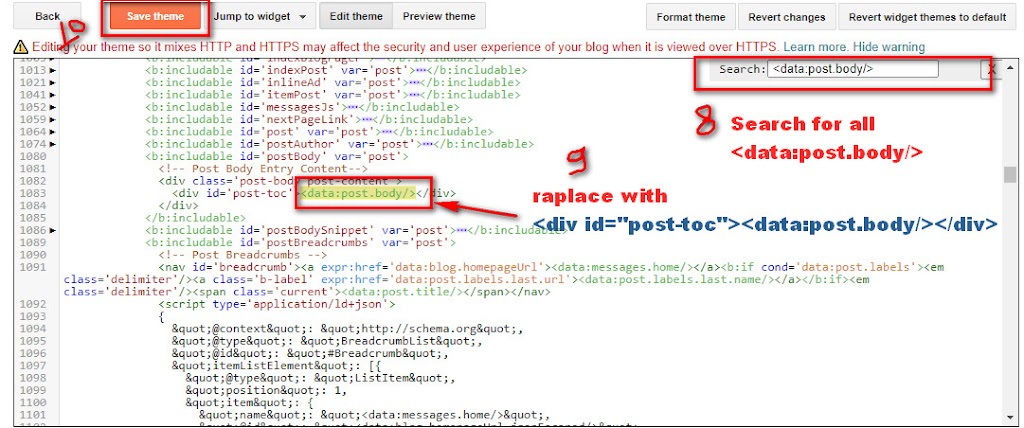
Step 7: Now save your templates and go to Blog Post.
- Coding under each post :
Note: This is the coding that you must done for your all post where you want to display TOC for this you must make sure where you want to display your table of content on your post .And find it under your HTML editor
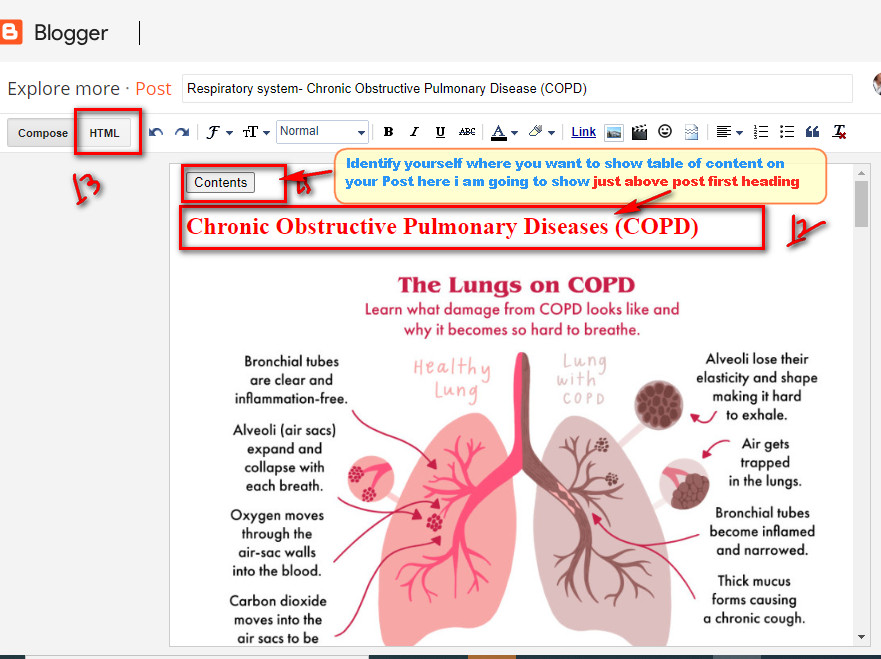
Step 8: Go to HTML editor on your post where you want to add TOC , then paste below Code in between heading tags like <h3>,<h2> or paste above your title.
(Note: If you already gives nubering on your titles then change ol to ul.)
<div class="mbtTOC">
<button onclick="mbtToggle()">Contents</button>
    <br />
<ol id="mbtTOC"></ol>
</div>

Step 9: At last paste below code at the end of your Post in HTML editor
<script>mbtTOC();</script>

Step 10: Now go to Compose mode and publish /Upgrade your post to see your Table of Content.
Method-2: Automated table of content using CSS
This is also simple method to add table of content on your Blogger ,which is quick method but might not be work for all templates.


<div id="toc" class="mb-toc">
 <h2>Table Of Contents</h2>
 <ul>
        <li><a href="#headingid1">1. Your heading text </a></li>
        <li><a href="#headingid2">2. Your heading text</a></li>
        <li><a href="#headingid3">3. Your heading text</a></li>
 <li><a href="#headingid4">4. Your heading text</a></li>
        <li><a href="#headingid5">5. Your heading text</a></li>
</ul>
</div>


Thanks For Sharing The Information The Information Shared Is Very Valuable Please Keep Updating Us
Web Design Company in Coimbatore
Dear user, Thanks for your Commnet . Please ,Keep Support us for more informatives articles.